Getting started
Getting started: from a new project to your first PDF
Create a project, choose the floor plan or the single-line diagram as your starting point, use guidance, a template or AI floor plan recognition, and produce your first draft PDF.
 AuthorStephan Behm
To start your first project, you need a PlanElec account and an up-to-date browser. You create the project in the studio with New project, choose one of two planning approaches and work from the floor plan or the single-line diagram through to the Export mode. There you download each document as a draft first. Every area works on the same project model, so the floor plan, installation, distribution board, single-line diagram and documents never need to be updated separately. The AREI/RGIE self-check shows open points within the supported rules. AREI (French: RGIE) is the Belgian electrical installation regulation; the official inspection, the keuring, is carried out by a recognised inspection body.
Using PlanElec as an owner or self-builder? Have all decisions and documents reviewed by a qualified electrician before installation and inspection.
How do I create a new project?
- In the studio, open the Projects panel and click the plus button New project. You can also find New project in the project menu, which you open with the blue PlanElec button at the top left.
- In the New project dialog, enter a Name with at least two characters. The Description is optional.
- Under Planning approach, choose Plan from the floor plan or Draw the single-line diagram first (see the next section).
- For the floor plan approach, pick your entry point under How would you like to start?
- Under Project type, choose the occasion: New build, Document existing installation, Extension or Renovation.
- Click Create. PlanElec creates the project and opens it in the studio.
If the name is missing, the dialog jumps back to the name field and shows why. The choices in the dialog only change the assistance you receive; every editor tool remains available on every path.
Floor plan or single-line diagram: which approach fits?
Both approaches create the same project type. Only the starting point differs.
| Planning approach | Best for | What happens after Create | Good to know |
|---|---|---|---|
| Plan from the floor plan (Recommended) | Anyone who captures rooms and devices spatially | The Floor plan mode opens; depending on your entry point, guidance or a template starts | The single-line diagram is generated from the recorded rooms, devices and circuits |
| Draw the single-line diagram first | Users switching from classic drawing tools | The Electrical mode opens with the Single-line diagram maximised; a main board and supply head are ready as an assumption | You place symbols directly in the diagram. Without a drawn floor plan, the situation plan stays out of the dossier and spatial checks do not block the diagram or the self-check report. All other checks still apply |
You can switch approach later in the project menu under Project settings…, section General. Switching only changes the starting point and export defaults; the diagram, floor plan and distribution board stay unchanged. PlanElec does not import project files from other planning tools such as Trikker.
Start with guidance, from a template or without guidance?
With the floor plan approach, the dialog offers four entry points:
| Entry point | What it does |
|---|---|
| Build with guidance (Recommended) | Starts the Record the installation workflow and opens the coach in the Workflow panel. It leads you from the building to Review and confirm the diagram. |
| Start from a template | Loads a prepared starting project and also starts the guidance. |
| Start with the situation plan | You place the consumers first and plan the installation afterwards; the cabinet and module positions stay open initially. Also starts the guidance. |
| Without guidance | Opens the free editor directly with all tools and no coach. |
Under Choose a starting project, three templates are available:
- Small apartment: five rooms, standard consumers and a two-row main board.
- Family house: multiple floors, typical residential circuits and a three-row main board.
- Existing installation survey: a compact starting point for an older existing installation.
A template is an example, not a design for your building. Adapt rooms, devices and boards to the real installation. The coach marks steps that are already done in the project. You can skip a step or end the workflow; your project data stays as it is.
Draw, upload or let AI recognise the floor plan
The studio is organised into modes, which you select in the bar on the left. Each mode brings its own tools and panels:
| Mode | Used for |
|---|---|
| Floor plan | Walls, rooms, doors, windows, stairs, plan templates and calibration |
| Furniture | Furnishing as orientation on the plan |
| Electrical | Devices, switch chains, circuits, cable routes, installation |
| Smart home | Bus routes, distribution board and automation channels |
| Lighting | Lighting planning and lighting study |
| Energy | PV system |
| Export | Review, download and archive documents |
On an empty floor, PlanElec asks How would you like to start this floor? and offers three options:
- Draw a floor plan: you create rooms directly on the situation plan.
- Upload a plan: a PDF, image or DXF serves as a template to trace. Set up pages, sections and scale as described in Import and calibrate a floor plan.
- Recognise the plan automatically: walls and rooms arrive as a proposal from a PDF or image. You check the draft and measure a known distance before applying it. The page is sent to an external AI provider for analysis. See How do I get AI to recognise a floor plan? for the process and its limits.
To draw it yourself:
- In the Floor plan mode, select the Polygon or Rectangle tool. Type exact dimensions while drawing: Tab switches fields, Enter confirms.
- Close the outline. PlanElec detects closed areas as rooms; use Split room to divide a room.
- Place Door, Window and Stairs in their real positions.
- Select a room and set its room type, such as kitchen, bathroom or technical room. Later device recommendations depend on it.
- Add further floors. You edit each floor separately; aligning floors and the building origin explains how to stack them.
Success check: every room is closed, named and classified. That is the right moment to start placing devices.
Place and connect devices
- Switch to the Electrical mode. The palette at the bottom shows room recommendations and the device catalogue.
- Place sockets, switches, lights, fixed connections, junction boxes and the distribution board. Wall-mounted symbols snap to the wall.
- Connect switches and lights with the Switch chain tool. For unassigned switches and lights in a room, PlanElec proposes a chain; check the sequence before applying it.
- Review the list of unconnected and unplaced components. A floor plan symbol only becomes part of the electrical model once its topology assignment is correct.
For the palette, icons and topology in detail, see Place and connect electrical symbols.
Plan circuits, the installation and the distribution board
- Open the Installation panel. Complete installation automatically plans circuits and protection devices from the open consumers. Review the preview with the target board, circuits and protection devices, then click Apply proposal.
- Assign individual devices with Assign circuit, and define cable paths with Cable route.
- Open the Distribution board panel. Automatic assignment places main switches, RCDs and circuit breakers on the DIN rails after a preview and keeps spare space free.
- Check the protection chain, phase allocation, module positions and the warnings shown.
Every automatic step is an editable proposal. Afterwards, check the board and circuit assignment, protection devices, cable data, junction boxes and calculated cable lengths. Read more in Using and reviewing automatic planning and Plan an installation and form distribution boards.
Review the single-line diagram and the self-check
The single-line diagram is generated from the same topology. Open the Single-line diagram panel and check circuit names, protection devices, cable data, installation methods and symbols. If an assignment is wrong, correct the consumer, circuit or cable section in the model, not just the drawing.
The Analysis panel shows the findings of the AREI/RGIE self-check. It covers a documented subset of the rules that can be decided from the recorded data. A run without errors means: no errors within these supported rules. Measurements, on-site conditions and rules that are not modelled stay outside its scope. What does PlanElec's AREI self-check verify? describes the exact coverage.
How do I get to my first PDF?
- Switch to the Export mode. The Documents panel opens.
- Under One data source for every document, review the project details and complete them with Edit metadata: customer, installation address, installer, licence number and EAN.
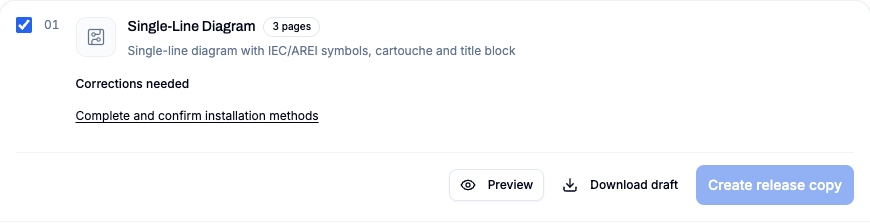
- On the Single-Line Diagram card, open the Preview and check the pages and the title block.
- Click Download draft. You receive a PDF marked as a draft for a visual check.
- Read the card status: under Corrections needed, the next item appears as a link, for example Review and confirm the single-line diagram. Clicking it takes you there.
Only when a card shows Ready for release or Ready with warnings does Create release copy become active; you confirm any warnings before archiving. PlanElec archives that copy on the server with a version. What is stored and how the QR code is verified is described in Archive documents with versions and verify them by QR code. All documents, statuses and the dossier are covered in Exporting documents.
Where can I find help in the studio?
The question-mark button Help in the header opens a menu with these entries:
| Entry | What happens |
|---|---|
| Quick help | Appears in the floor plan, installation, distribution board and single-line diagram views with five short steps. |
| Start studio tour | Points out the project menu, mode bar, toolbar, palette, panels, view, floors, status, search and assistant in turn. |
| Open hands-on tutorial | Eight hands-on chapters: Draw the floor plan, Place devices and the board, Create the roof, Lay out PV arrays, Generate the distribution board, Connect the PV system, Create and route cables, Check and export. |
| Restart guided setup | Restarts the Record the installation workflow and opens the coach. |
| Open the related guide | Opens the knowledge base article for the current view in a new tab. |
| Solve common problems | Opens the guide to typical problems, whatever view you are in. |
The tour and the tutorial are only available in the studio.
Ask the AI assistant for help
In the Activity & assistant panel, you write to the PlanElec assistant in English, Dutch, French or German. It answers technical questions with sources from the help pages and the full AREI/RGIE text, and it carries out planning instructions in the project, for example for rooms, devices, circuits or the distribution board. Clear, reversible changes run directly; riskier actions need your confirmation first. Every change is its own undo step and appears in the project history. Each run uses your AI allowance. Read more in How do I use activity and the assistant in the studio?
Checklist before your first download
Before your first download, check that:
- all floors and rooms exist and are named and classified;
- electrical symbols are in the right positions;
- consumers are linked to the topology, a circuit and a board;
- cable data and calculated or manual lengths have been checked;
- the distribution board and protection chain match the planned set-up;
- project, customer, installer and installation details are complete;
- the self-check findings have been reviewed and assessed.
How do I save? Is my project saved automatically?
Yes. PlanElec saves every change in the studio automatically, about 1.5 seconds after your last edit and, while you keep working, within a few seconds at the latest. This covers the whole project: floor plan, rooms, devices, circuits and all other project data. There is no Save button; you never need to save manually.
The save status appears in the round status indicator in the status bar at the bottom right of the studio. Click it for details: save status, time of the last save, connection (Online or Offline) and the last complete server state.
| Indicator | Meaning |
|---|---|
| Saved | All changes are on the server. |
| Saving... | The latest change is being sent. |
| Unsaved | Changes are waiting for the next automatic save. |
| Saved locally | Changes are kept in this browser; the server backup is still pending. |
| Offline | No connection. Changes are saved locally. |
| Save failed | The server did not accept the change; the details state the reason. |
Without an internet connection you can keep working. PlanElec keeps your changes in this browser and sends them automatically once the connection is back. If you close the tab, PlanElec still sends pending changes while closing; anything that does not arrive is caught up the next time you open the project in the same browser. Do not clear your browser data until the indicator shows Saved.
If there is a conflict, for example because the same project was changed on another device in the meantime, the status indicator reports it. PlanElec then keeps your local state as a draft. You find it in the Projects panel under Recovered drafts and open it with Open draft as project copy.
To take back a single step, use Undo: the arrow at the top right of the studio or Ctrl+Z (Mac: Cmd+Z).
How do I start over or clear parts of a project?
To start over completely, create a new project and archive the old one. To discard only parts, delete specific devices, rooms, an imported floor plan (underlay) or a floor. There is no "clear everything" button that empties a whole project at once.
| Goal | Path in the studio | Getting it back |
|---|---|---|
| Start from scratch | Project menu → New project | The existing project stays unchanged. |
| Remove the old project from the list | Project menu → Archive | Projects → Show archive → Restore |
| Remove all devices of a room, keep the walls | Right-click the room → Remove devices | Undo |
| Delete a room with its walls and devices | Right-click the room → Delete room | Undo |
| Delete an imported plan (image, PDF, DXF) | Floor plans → trash icon | Undo; the layer is retained for 7 days |
| Delete a whole floor | Floor rail → Manage floors → Delete … | The dialog warns that deletion is permanent. |
Create a new project and archive the old one
- Open the project menu with the blue PlanElec button at the top left.
- Choose New project. Alternatively, open the Projects panel in the left rail and choose the plus icon New project.
- Switch back to the old project and choose Archive in the project menu. Confirm with Archive.
An archived project leaves the list and is kept in the archive. You bring it back in the Projects panel via Show archive and Restore. Users with edit rights can archive. The interface does not offer permanent deletion of a whole project.
Clear or delete a room
In the floor plan, right-click a room; on a touch screen, press and hold the room.
- Remove devices removes all devices in the room. The walls stay.
- Delete room removes the walls and all devices of the room. Interior walls shared with other rooms are kept.
Both actions ask for confirmation and form a single Undo step.
Delete a floor
In the floor rail at the top right, open the Manage floors menu (three-dot icon) and choose Delete ‹floor name› …. The Delete floor? dialog lists the affected devices, stairs, switch chains, cable routes and floor-plan layers. The floor and all associated data are deleted; its floor-plan layers are retained for seven more days. The last remaining floor cannot be deleted.
To remove only an imported floor plan, see the floor-plan import guide.
A qualified electrician reviews inputs and exports before installation; the binding assessment is made by a recognised inspection body. If something does not work as expected, see Solve common problems. No account yet? Create a free Early Access account.
Important for electrical planning
These guides explain the software workflow. Have the design, installation and documents reviewed by a qualified electrician where needed; only an accredited inspection body performs the official inspection.
Continue reading
Using and reviewing automatic planning
Use PlanElec proposals for devices, switch chains, cable routes, circuits, phases, and the distribution board without skipping technical review.
Exporting documents and assembling an installation dossier
Download the single-line diagram, situation plan, self-check report, board layout and planning lists as drafts, combine them into an installation dossier and archive release copies with versions.