Document export
Exporting documents and assembling an installation dossier
Download the single-line diagram, situation plan, self-check report, board layout and planning lists as drafts, combine them into an installation dossier and archive release copies with versions.
 AuthorStephan Behm
You create every document in the studio in the Export mode, Documents panel. You need a saved project with content for the document in question, for example a topology for the single-line diagram. You download each document as a PDF draft first; once export readiness is met, you create a release copy, which PlanElec archives unchanged and with a version on the server. You can combine selected documents into an installation dossier with a cover, document index and continuous page numbering, for example as the file for handover or inspection. All outputs come from the same project model and carry the same project and installer details. The self-check report shows open points for the supported AREI/RGIE rules (the Belgian electrical installation regulation); the official inspection is carried out by a recognised inspection body.
Which documents are available, and what is their status?
| Document | Status | Content and limits |
|---|---|---|
| Single-Line Diagram | Available | Multi-page PDF from the electrical topology with title block; always black and white. |
| Site Plan (situation plan) | Available | PDF of floors, rooms and placed symbols with legend. Left out of the dossier when a project using "Draw the single-line diagram first" has no drawn floor plan. |
| AREI/RGIE self-check report | Available, advisory | Result of the supported rules that can be evaluated from the project data. Not available when the self-check is switched off for the project. |
| Distribution board layout | Available | Selectable as soon as the distribution board contains data. |
| Circuit List, Material List, Cable list | Pilot | Manufacturer-neutral, model-based lists as PDF and CSV; no prices, not approved for ordering. Field acceptance is still open before general release. |
| Installation dossier | Available | Selected documents with a branded cover, document index, continuous page numbering and versioned server archiving. All pages carry the same dossier identifier. Field acceptance with real customer projects is still open. |
Depending on the project, further entries appear, such as the Conductor list, Distribution board terminal plan or PV yield report. A current PV yield report is always included in the dossier. Treat these outputs like the lists: as working documents that you review technically. With an active automation profile, a smart home section also appears below the documents; those documents are not part of server archiving.
What do Draft, Corrections needed and Ready for release mean?
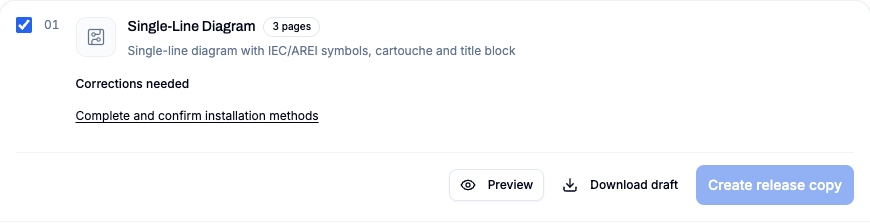
Each document card shows a status and the buttons Preview, Download draft and Create release copy.
| Status | Meaning | What you can do |
|---|---|---|
| Draft | The document has no content yet; preview and download are locked. | Add the content in the project |
| Corrections needed | At least one item blocks the release copy. The first item is shown as a link below the status. | Download a draft; follow the link to the correction |
| Ready for release | Nothing is open. | Create release copy |
| Ready with warnings | No block, but warnings such as missing project details. | Create a release copy and explicitly confirm the warnings |
Typical open items are Review and confirm the single-line diagram, Complete and confirm installation methods, Place missing devices on the situation plan, Place missing modules on the DIN rails, Complete circuit labels and Review the self-check findings. A draft is marked DRAFT and is not an archived release copy.
Check project details, installer details and logo
At the top of the Documents panel, One data source for every document summarises project, customer, installation, installer and EAN. Use Edit metadata to complete them; the same fields are in the project menu under Project settings…, sections Customer & installation and Participants.
| Detail | Where it comes from |
|---|---|
| Customer, installation address, EAN | Project settings, Customer & installation section |
| Installer, licence number, contact, inspection body | Project settings, Participants section; empty company, enterprise number and address fields are taken from the project owner's profile |
| Company logo | Account menu My Profile, Company logo: PNG or JPG, max 500 KB, at least 200 × 80 px and at most 2000 × 800 px |
The single-line diagram, situation plan, self-check report and dossier cover all use the same snapshot of these details, including the logo, at export time. If the logo cannot be loaded, the document is still created, just without the logo. Missing details such as the customer name, installation address, installer or licence number, and an invalid EAN appear as warnings: drafts remain possible, and a release copy requires you to confirm these warnings explicitly.
How do I export a single document?
- Switch to the Export mode. The Documents panel opens.
- In the Dossier overview, choose the Plan format A4 or A3. The single-line diagram and situation plan use that format; tables and the cover stay A4.
- If needed, set Circuit colours to Colour or Black and white. This applies to the situation plan and the cabinet view.
- Open the Preview on the document card and check the pages, title block and page edges.
- Click Download draft and open the file outside PlanElec for a visual check. The lists also offer CSV.
For the single-line diagram, check in particular that every consumer path reaches the correct circuit breaker and RCD, that cable type, cross-section and labels are present, and that spare modules do not appear as active circuits. Large diagrams are spread across several pages.
What should I check on the situation plan?
The situation plan shows rooms, openings and electrical symbols in their positions. Check each floor for overlapping labels, missing devices and legibility in the selected format. The situation plan and single-line diagram share the title block and project notes; correct those details in the project, not in an individual PDF.
What does the AREI/RGIE self-check report show?
The report summarises the findings PlanElec can evaluate from the recorded data and the supported rules. It states when a check is incomplete or when part of the installation falls outside the current coverage. For PV, it contains an installation register explicitly labelled as a planning register.
A report without errors means: no errors within the supported rules that can be checked from the data. Measurements, manufacturer evidence, on-site conditions and rules that are not modelled stay outside its scope. Which rules are checked is described in What does PlanElec's AREI self-check verify?
Reading the circuit, material and cable lists (pilot)
- The Circuit List helps you check assignments and the protection chain.
- Open the Material List with Open material overview, by category or by room. Contributions without a room stay visible. Manually entered items are marked as such and are never merged with calculated rows.
- Open the Cable list with Open cable list. It shows segments and net lengths; a manual length overrides the calculated one.
The material list uses manufacturer-neutral default assumptions. It contains no prices, no specific manufacturer products and no automatic site reserve; household appliances count as connections. The card points this out with the note that the list contains model quantities and is not an approved procurement list. Use it as a reviewable starting point for a quotation.
Export the distribution board layout
The Distribution board layout becomes selectable as soon as the board in the project contains data; no switch or activation is needed. With several boards, choose All distribution boards or a single board under Export scope in the Dossier overview. The scope applies to the cabinet layout, single-line diagram, conductor list and terminal plan; a single board keeps its sheet number from the complete diagram. Check rows, module positions, labels and spare space against the planned set-up.
Assemble an installation dossier
- Complete the project details with Edit metadata.
- Under Assemble the dossier, tick only the documents that belong to the current working state. The Dossier overview lists them under Included documents in a fixed order.
- Check the plan format, circuit colours and other options.
- Open the dossier Preview and check the cover, document index, order, title blocks and continuous page numbering.
- Click Download draft for a working copy, or Create release copy once Final submission is ready.
A complete dossier contains the single-line diagram, situation plan and self-check report; the overview tells you whether your selection is complete or a partial output. With "Draw the single-line diagram first" and no floor plan, the dossier counts as complete without the situation plan.
Create and archive a release copy
Create release copy applies to the saved project state. If there are warnings, PlanElec shows them first; with Confirm warnings and archive, they remain part of the stored copy. The copy then appears under Versioned PDF outputs with PDF, Sticker PDF, Sticker PNG and Revoke QR. Its QR code refers to that exact archive version. Drafts remain local downloads.
Later project changes do not change an archived copy; for a new state, you create a new copy. Archiving confirms origin and file integrity. It is not an electrical inspection, a certificate of conformity or an electronic signature. How recipients verify a document via the QR code, and how you revoke a link, is explained in Archive documents with versions and verify them by QR code.
Final check before sharing
- Are project, customer, address, installer, logo and revision correct on every document?
- Are all floors, circuits, symbols and cable labels legible?
- Do the plan format and page order suit the purpose?
- Have you reviewed automatically planned assignments and lengths?
- Are open findings or coverage gaps in the self-check report visible and understood?
- Does the dossier contain only the document versions you actually reviewed?
Have the documentation reviewed by the responsible electrician; the official inspection is carried out by a recognised inspection body. To build up the project model, start with Getting started; if something goes wrong, see Solve common problems.
Important for electrical planning
These guides explain the software workflow. Have the design, installation and documents reviewed by a qualified electrician where needed; only an accredited inspection body performs the official inspection.
Continue reading
Getting started: from a new project to your first PDF
Create a project, choose the floor plan or the single-line diagram as your starting point, use guidance, a template or AI floor plan recognition, and produce your first draft PDF.
Using and reviewing automatic planning
Use PlanElec proposals for devices, switch chains, cable routes, circuits, phases, and the distribution board without skipping technical review.